Guides

Short, no-fluff walkthroughs of how to get the most out of DeedTrack.

← All guides

Getting started

Get your first owner-financed deal on the books — a property, a buyer, and the loan that ties them together. About five minutes.

DeedTrack is built in that order, and it matters: a loan needs a property and a buyer to point at, so add those first. Once the loan is saved, the amortization, the monthly breakdown and the full payment schedule are generated for you.

1. Add the property

Go to Properties in the sidebar and click + Add Property.

  1. Street address, City, State and ZIP — this is the address your buyer sees and the one that prints on mailed notices, so use the full legal address.
  2. Notes is optional. Anything you want on hand later — parcel number, what you paid, condition at sale.
  3. Company only appears if you've set up more than one LLC. It decides which bank account this property's payments land in, so if you hold property in different entities, get this one right.

Click Save.
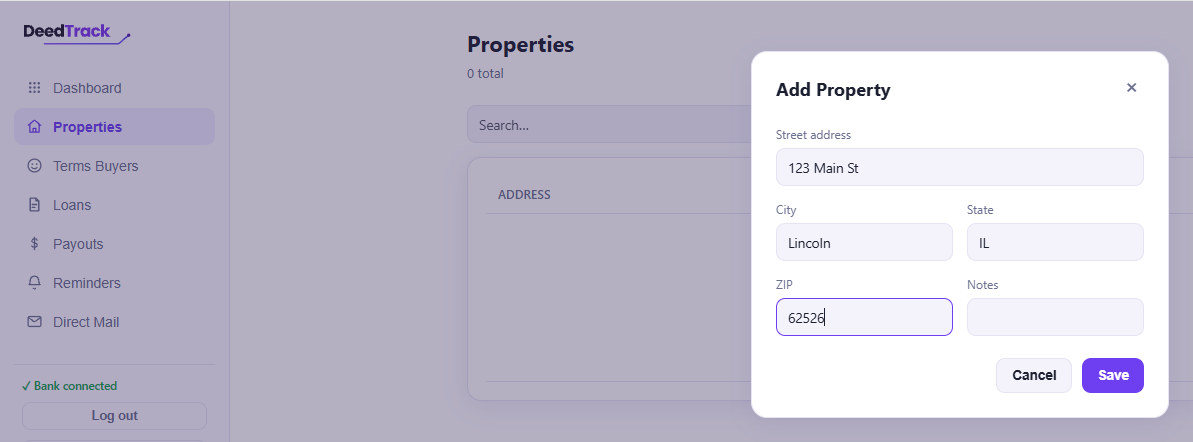
The Add Property form, with street address, city, state and ZIP filled in
Click to enlarge

2. Add the buyer

Go to Terms Buyers and click + Add Buyer. Enter their Full name, Email and Phone.

The email is the one that matters. It's how your buyer gets their own login, and it's where their invitation goes — a typo here means they never hear from you.

Click Save. Saving doesn't email anyone — you send the invitation yourself once the loan is set up, and the Terms Buyers page keeps a count of who's still waiting.
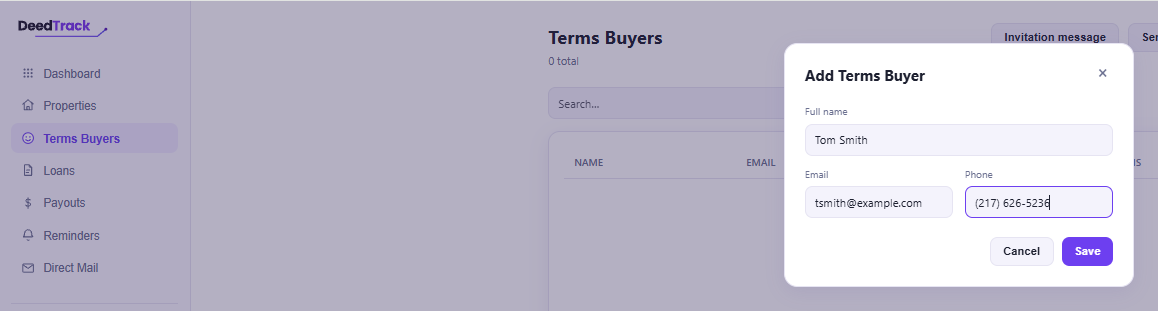
The Add Terms Buyer form with name, email and phone filled in
Click to enlarge

3. Create the loan

Go to Loans and click + New Loan. This is where your signed contract gets typed in, once.

Who and what

  • Property and Terms buyer (primary) — the two you just created.
  • Co-buyers on this loan is optional — anyone else on the contract. Each co-buyer gets their own login, sees this loan, and can make payments.
  • Loan type — Amortized (level payment) for a standard note, or Interest-only + balloon.

The numbers

Straight off your contract:

  • Sale price and Down payment. What's left is the amount financed.
  • Interest rate (%/yr) and Term (months).
  • Start date (first payment due) — not the closing date. The date the first payment is owed.
Don't skip the down payment. It isn't just record-keeping. It's what DeedTrack uses to work out your buyer's equity, so a buyer who put $3,000 down shows $3,000 of equity from day one instead of zero.

Escrow, if you collect it

Property taxes (annual) and Insurance (annual) are annual figures — DeedTrack divides by twelve. Entering a monthly amount here is the most common setup mistake, and it makes the payment come out far too low.

Miscellaneous fee (monthly) is a flat monthly charge, if you bill one. Name it whatever your contract calls it — “Loan service fee”, “Administration fee” — and put the amount beside it. That name is what shows on the loan and in your exports. Leave both boxes empty and nothing is charged.

If the note already has payments on it

Most notes you put into DeedTrack aren't brand new. Payment status handles that:

  • Buyer is current (caught up) — DeedTrack builds the history up to today for you.
  • Buyer is behind on payments — then fill in Months behind.

Either way, you're not back-entering two years of payments by hand.

Late fees

Set Late fee type to a percentage of the monthly payment or a flat dollar amount, then set the Grace period (days before late fee).

Watch the line under the grace period — it tells you the exact day the fee will be added, and it updates as you type. A payment due on the 1st with a 4-day grace means the buyer has the 1st through the 5th and the fee lands on the 6th. Check it against your contract before saving; it's the one setting people most often assume rather than read.

A percentage fee is a percentage of the full monthly payment — not of the balance, and not of whatever is left after a partial payment. A part-paid month still gets the whole fee, because the month wasn't paid in full by the end of grace.

Late fee caps and minimum grace periods vary by state. Set these to match the law where the property is located and what your signed contract says — DeedTrack applies whatever you enter, it doesn't check it for you.

Click Save Loan. The monthly payment calculates as you type, so you can check it against your contract before saving.
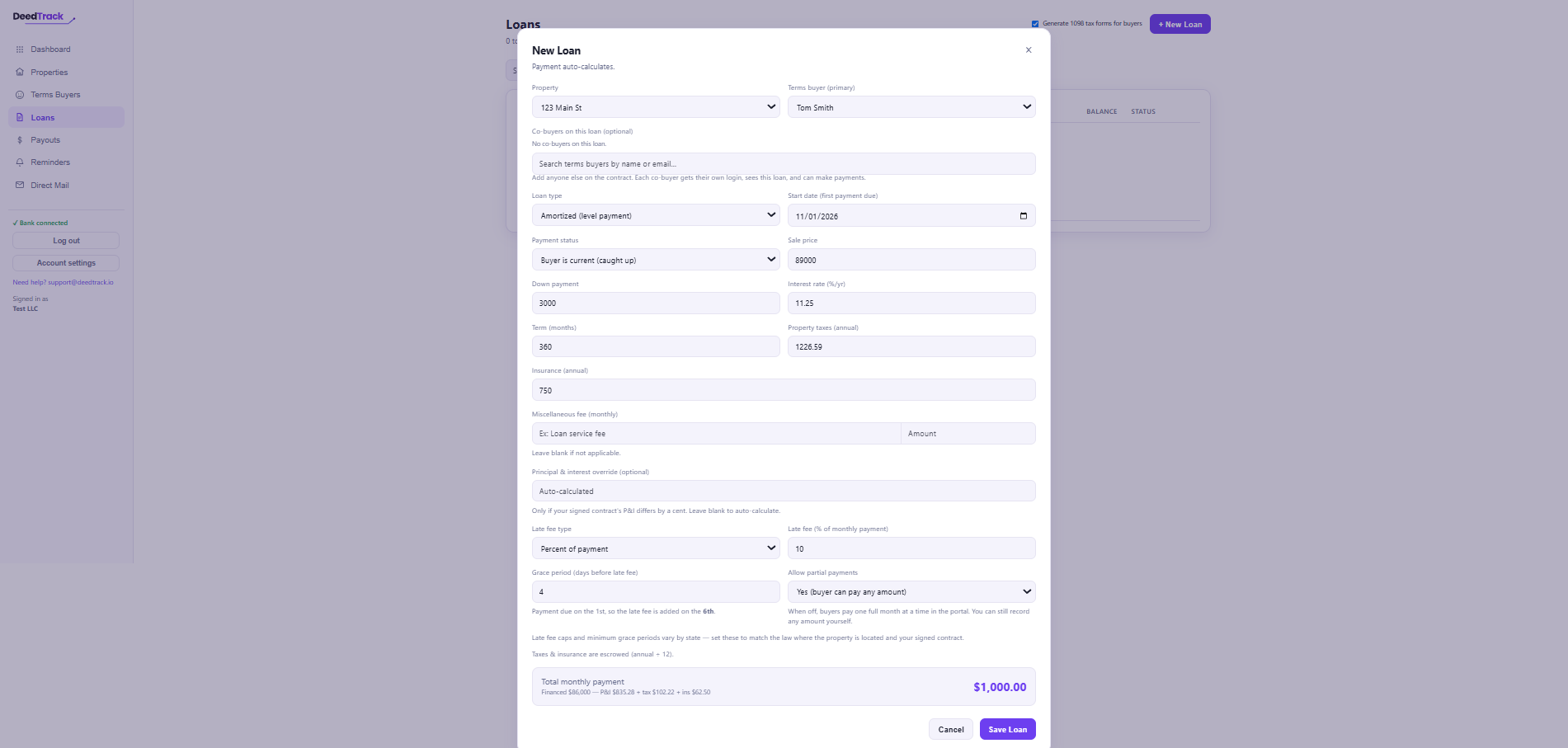
The New Loan form filled in for 123 Main St, showing the grace period hint and the total monthly payment calculated at the bottom
Click to enlarge

Send the invitation

Now the loan exists, go back to Terms Buyers and click Send invite next to your buyer. They get an email with a link to create their login, and from then on they can see their balance, what's due, and pay online. The button reads Resend invite afterwards, so you can always send it again.

Before you send, it's worth adding your own note to the invitation — something like “this is the payment portal I mentioned, call me if anything looks off.” It appears above the sign-up steps, under your name, so the email reads like it came from you rather than from software. Write it once and every invitation uses it.

When payments come in

Your buyer can pay by card, Cash App or bank transfer. Card and Cash App clear straight away and appear on the loan within seconds.

Bank transfers take about four business days. The money leaves your buyer's account almost immediately, but the banks take several days to settle it, so it won't count toward the balance until it arrives. Both of you will see it listed as processing in the meantime, with the date it's expected to clear.

This catches people out, so it's worth telling a buyer up front: a bank payment that's gone through will still show the full amount owing for a few days. More than one buyer has paid twice because they assumed the first attempt failed.

Two other things worth knowing about bank payments: the money needs to stay in their account until it clears, not just on the day they pay, and a returned payment can bounce back days later.

That's it

One property, one buyer, one loan — and you're servicing the note. Open the loan to see the balance, the monthly breakdown and the full payment schedule, all built from what you just entered.
← All guides

Banking and Payouts

Connecting your bank, reading the Payouts page, opening your Stripe dashboard, and when money arrives.

Connecting your bank

Until a bank is connected, your buyers can’t pay online. You’ll see a prompt at the top of the Dashboard until it’s done.

Click Connect bank and you’ll be taken through Stripe’s setup. It asks for your business details and the account you want payouts sent to, and takes a few minutes. Once it’s finished you’ll see ✓ Bank connected at the bottom of the sidebar.

If you hold property under more than one company, each company connects its own bank account. Set them up under Account settings › Companies. A property’s payments land in the bank of the company that owns it.

The Payouts page

Everything about money in and money out lives here. Working down the page:

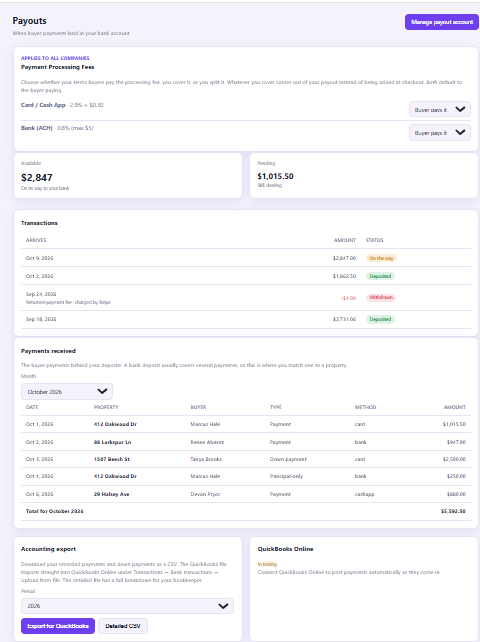
The Payouts page, showing processing fees, available and pending balances, transactions, payments received and the accounting export
Click to enlarge

Available and Pending

  • Available — cleared and on its way to your bank.
  • Pending — buyer payments that haven’t finished clearing yet.

Transactions

Each deposit into your bank, with the date it arrives and its status — On the way, Deposited, or Scheduled.

A negative line is money leaving your balance rather than arriving. These show the reason beside them and are covered in the fees guide.

Payments received

The individual buyer payments behind those deposits. One deposit usually bundles several payments together, so this is where you match a deposit to a property.

Each line shows the date, property, buyer, method, and a Type — a regular payment, a principal-only payment, or a paid down payment invoice. Use the Month picker to move between months, and the total at the bottom covers the month you’re viewing.

Accounting export

Two downloads at the bottom of the page. Export for QuickBooks gives you a file that imports straight into QuickBooks Online under Transactions → Bank transactions → Upload from file. Detailed CSV gives a full breakdown — interest, principal, taxes, insurance, fees and charges, line by line — which is what a bookkeeper will want.

Choose the period first, and if you have more than one company, whether to include just the one you’re viewing or all of them.

Your Stripe dashboard

You already have a Stripe account — it was created when you connected your bank. You don’t need to register separately, and signing up at Stripe directly won’t find it.

Click Manage payout account at the top of the Payouts page. That signs you in with no password needed.

What’s there that isn’t in DeedTrack:

  • The exact processing fee on every individual payment.
  • Each deposit broken down into the payments that made it up — open Payouts in Stripe and click any deposit. This is what you need to reconcile a bank deposit to your books.
  • The bank account your payouts go to, and the ability to change it.
  • Monthly statements and tax documents for your own records.
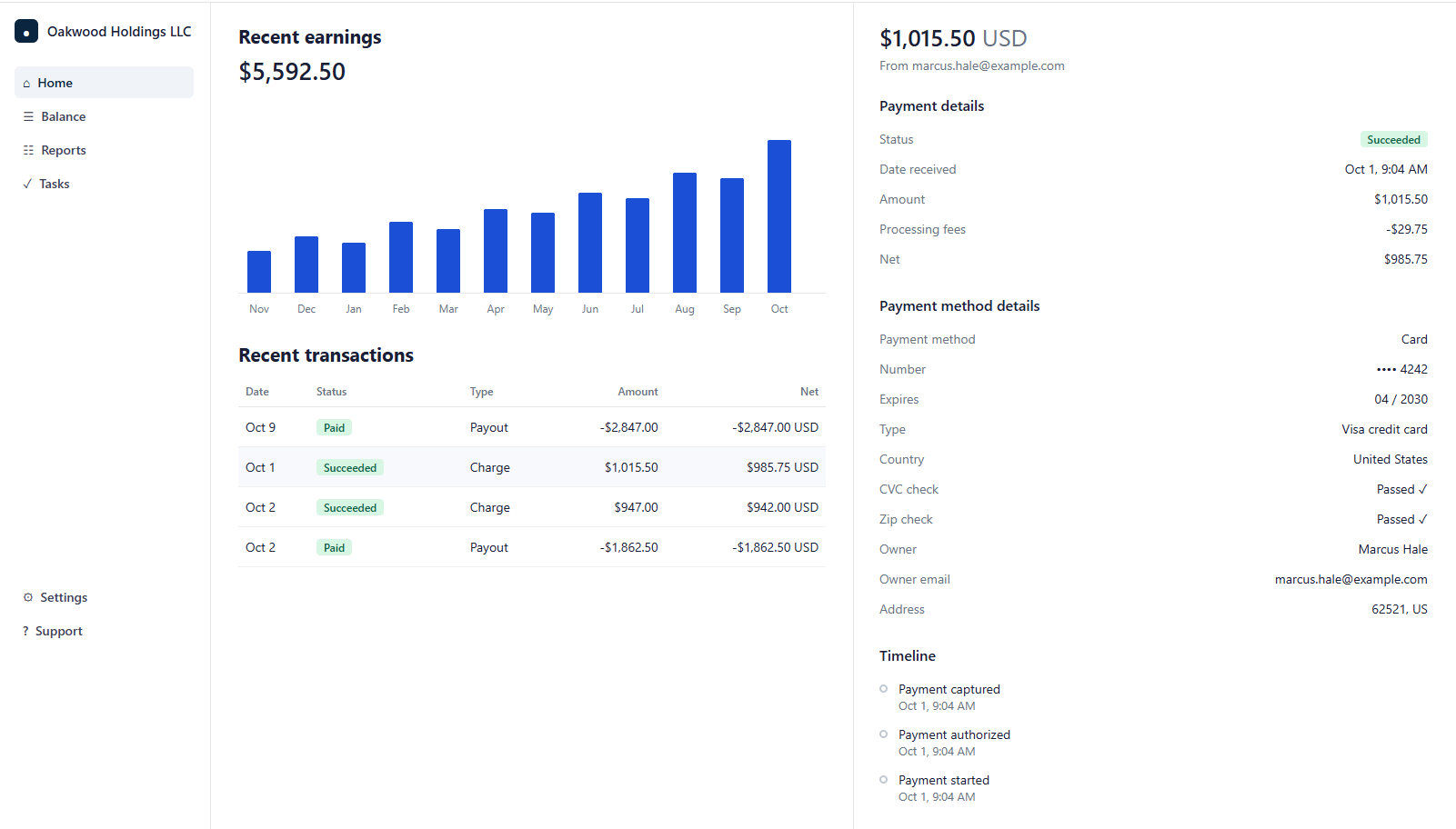
A payment opened in the Stripe dashboard, showing the amount, the processing fee deducted and the net amount paid out
A single payment in Stripe — the fee is deducted from the amount to give the net that reaches your bank

When money arrives

Two stages, and people usually only count the second:

  • A card or Cash App payment clears immediately. A bank transfer takes about four business days to clear.
  • Then Stripe pays out to your bank, which takes about two business days.

So a card payment reaches your account in two or three business days, and a bank payment in roughly a week and a half.

Your first payout is held for 7–14 days while Stripe verifies the account. It’s a one-off — after that, payouts arrive on the normal schedule.

While a payment is still clearing

A bank payment appears on the loan as soon as your buyer submits it, marked as processing, with the amount and the date it’s expected to clear. Your buyer sees the same. It counts toward the balance once the money actually arrives.

A bank payment counts as made on the day your buyer started it, not the day it clears, so the clearing time never costs them a late fee.

What you’re emailed automatically

  • Every payment received.
  • Any payment that fails, with the reason.
  • Any payment refunded or disputed.

None of these need turning on.

← All guides

The buyer portal

Where your buyers sign in, what they can see, and how their invitation works.

Coming shortly.

← All guides

Direct Mail

Write a letter template, add your signature, and send real mail — standard or certified.

Coming shortly.

← All guides

Notices & tax forms

Automatic reminders, late notices, and the year-end 1098 for every buyer.

Coming shortly.

Don’t see what you’re looking for?

Email [email protected] and we’ll get back to you.

Get started — create your account